How the controller reports a problem, and how to review and acknowledge it — on the controller, or remotely.
¶ Where alarms show up
- The Health light — blinking red for an unacknowledged severe alarm, blinking amber for a warning. See What the LEDs Mean.
- A toast on the display when an alarm is raised.
- The alarm list on the controller — the full record.
- The Overview tile, which counts severe and warning alarms.
- Inteliverse — alarms are sent to the cloud when the controller is online.
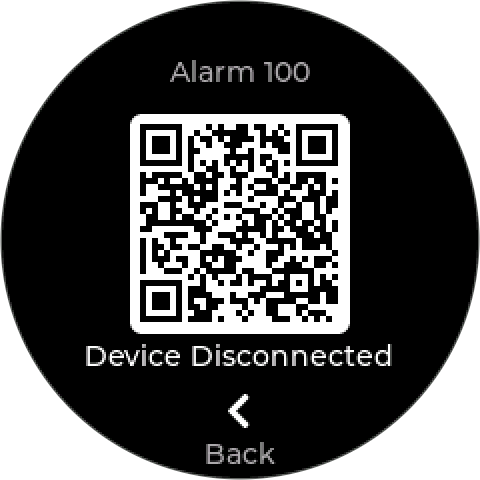
Every alarm has a numeric code with its own page — see Error Codes. On the controller, the alarm’s Help button shows a QR code for that page.
¶ The alarm list
Open it from the Overview tile (View). The title reads Alarms.
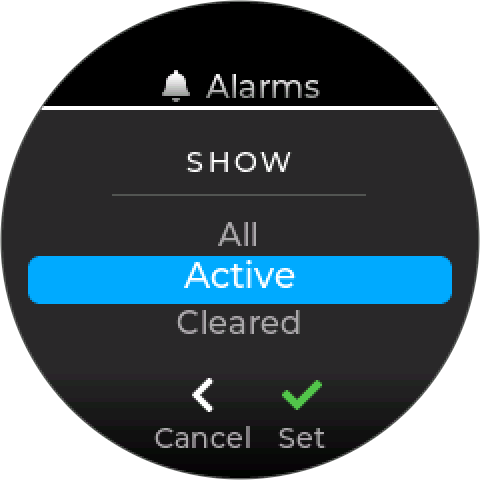
At the top, a filter chooses what the list shows — press Enter on it:
| Filter | Shows |
|---|---|
| All | Everything recorded, newest first |
| Active | Alarms whose condition is still present, acknowledged or not |
| Cleared | Alarms whose condition has gone |
| Acknowledged / Unacknowledged | By whether someone has seen it |
Below the filter, Ack All acknowledges every alarm in the list, including cleared ones; the count says how many.
¶ Reading a row
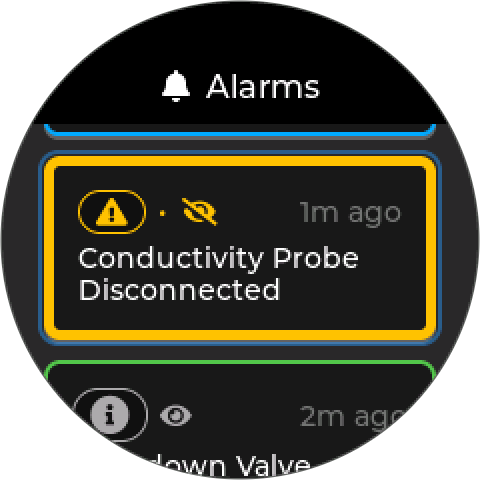
Each row names the device first, then the condition — Acid Level Low, Conductivity Probe Disconnected, Feed Pump Manual On - 5 min — with how long ago it happened. Its state is in glyphs:
| Glyph | Means |
|---|---|
| Red ✕ badge | Severe |
| Amber ⚠ badge | Warning |
| ⓘ bubble | Notice — nothing to fix; it reports something that happened |
| Dot | The condition is still active |
| Tick | The condition has cleared |
| Closed eye | Not yet acknowledged |
| Open eye | Acknowledged |
A notice has no condition to clear, so it shows only the eye. A long device name is shortened so the condition always stays visible. Alarms about the controller itself — WiFi, time, setup, power — name no device.
New in an upcoming firmware update. Earlier firmware shows a two-view list (Active / History), with the state as text, and names the condition first.
¶ An alarm’s details
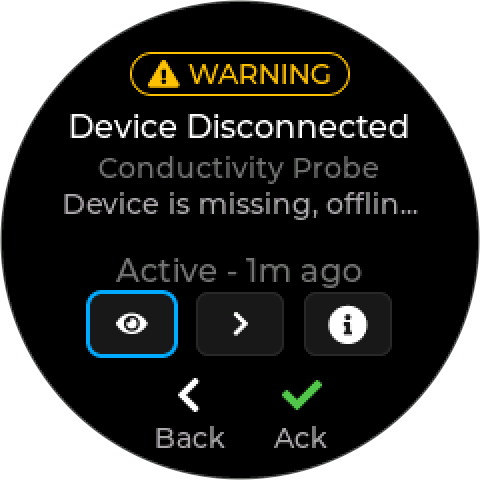
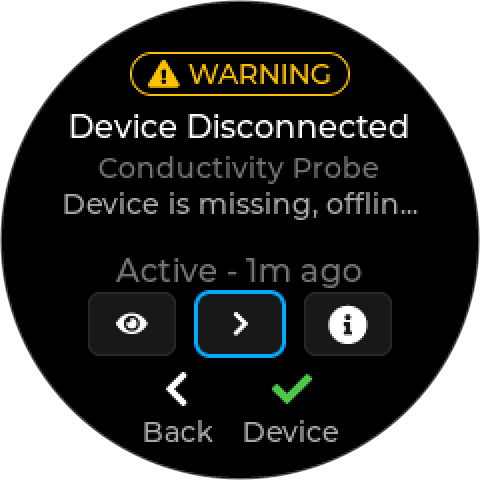
Press Enter on a row. The title is the condition, with the device on the line below, then the description and how long ago it happened. Three buttons sit underneath; Up and Down move between them, and the hint names the one selected:
| Button | Hint | Does |
|---|---|---|
| Eye | Ack | Acknowledges the alarm |
| Arrow | Device or Limits | Opens what the alarm is about — the device’s page, or for a limit alarm the reading’s Limits page |
| ⓘ | Help | Shows a QR code for this alarm’s page on this wiki. Scan it with a phone for the full explanation and what to check. |
Only the buttons that apply are shown. The QR code links to wiki.inteliverse.cloud/en/InteliHive/e/<code> — the same pages as Error Codes.
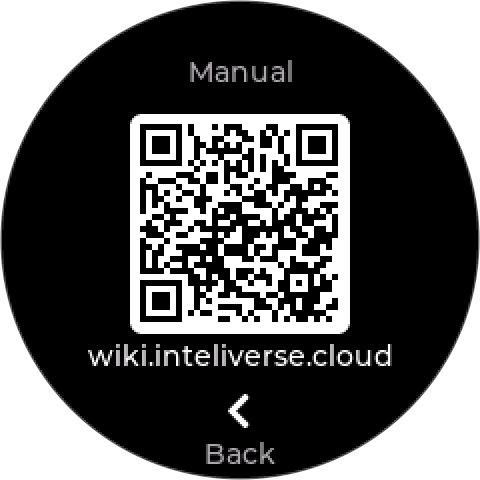
Settings → Manual shows a QR code for this manual’s home page.
¶ Toasts
A toast — a short message across the screen — shows when an alarm is raised. If several arrive together, the newest is shown. Back dismisses it.
¶ Acknowledging
Acknowledging records that someone has seen the alarm. It does not fix or clear anything: an active alarm stays active until its condition goes away.
- Ack — the eye button on an alarm’s detail screen.
- Ack All — from the list, after a confirmation. It does not bring back an old alarm’s toast.
An acknowledged alarm that is still active stays under the Active filter, with an open eye. Acknowledging also updates the Overview tile’s count.
Acknowledging does change the Health light: it stops the blinking. An acknowledged severe alarm shows solid red — still red, because it is still severe until it clears — and an acknowledged warning shows solid amber. A cleared alarm stops its double pulse once acknowledged.
A cleared alarm still wants reviewing. A fault that fixed itself overnight leaves a Cleared entry and a double-pulsing Health light until someone acknowledges it.
Alarms can also be acknowledged remotely, from Inteliverse or the app.
¶ Removing a device clears its alarms
When you remove a device, its alarms go with it. Alarms left behind by devices removed on earlier firmware are swept away at the next start-up.
¶ How much is kept
The controller keeps the most recent 50 alarm events, and keeps them across restarts. Older events drop off as new ones arrive. Inteliverse keeps the long-term record.