Connecting the InteliHive to the site’s WiFi and to Inteliverse, and checking the connection.
¶ Two networks
The controller uses WiFi two ways at once:
| Network | For | Needed for control? |
|---|---|---|
| The site’s WiFi | The Inteliverse cloud and network time | No |
| The controller’s own network | Wireless output devices, and phones during setup | Only for wireless outputs |
Losing the site WiFi stops cloud reporting and network time. It does not stop control, and it does not affect wireless devices — see Wireless devices.
¶ Connecting to WiFi
Set the site’s WiFi during setup — from the phone, or with WiFi Setup on the controller.
To change it later:
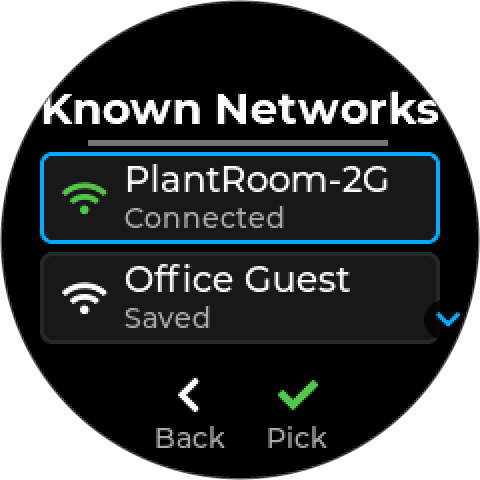
- To a network the controller already knows — Settings → Networking → Known Networks lists the saved networks, marked Connected or Saved. Choose one to join it.
- To a new network, or a new password — use the app. Known Networks → Add Network, or Settings → Networking → QR Code, shows the code; scan it to join the controller’s own network, and set the WiFi from the phone.
The controller reconnects on its own after a dropout, raising WiFi Lost (401) while it is disconnected.
¶ Running without WiFi
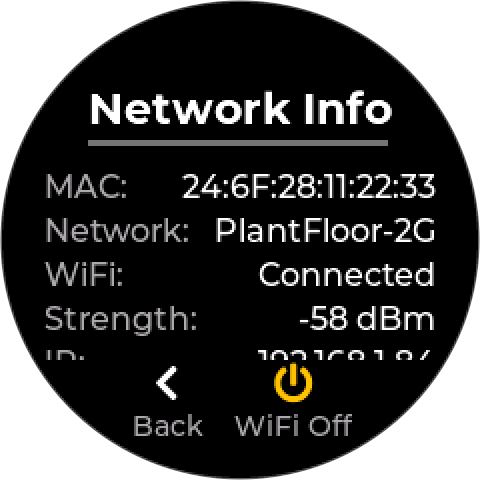
A controller can run with its WiFi switched off, for a site with no network or where the cloud is not wanted. Choosing Offline Setup during setup does this, and so does Enter (WiFi Off) on Settings → Networking → Network Info.
- The controller stops joining the site WiFi and does not reconnect on its own.
- Its own network stays up, so wireless output devices keep working and a phone can still connect.
- The WiFi light is off, and Cloud Setup Pending (502) is not raised.
- WiFi On on the same screen, or choosing a network under Known Networks, switches it back on.
Network time needs WiFi. Offline, the clock runs from the time you set by hand. Check it now and then.
¶ Inteliverse
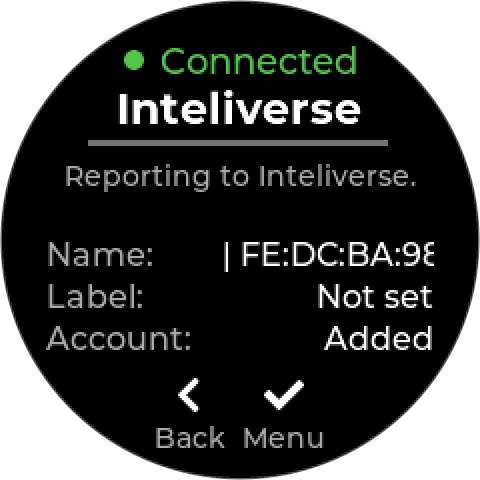
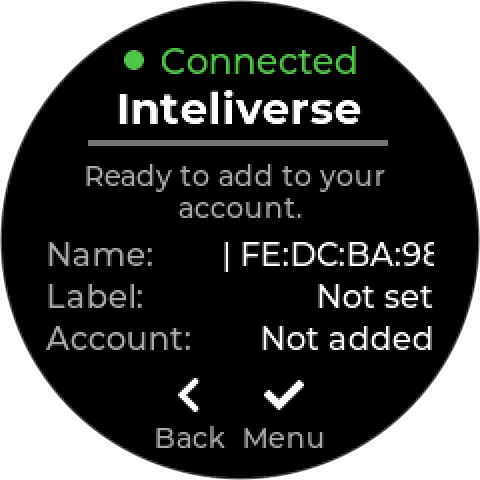
Settings → Networking → Inteliverse shows the cloud connection:
| Status | Means |
|---|---|
| Connected — Reporting to Inteliverse. | Online, sending data, and added to an account |
| Connected — Ready to add to your account. | Online, but not yet added to an Inteliverse account |
| Not registered — Waiting to reach Inteliverse. | Has not reached Inteliverse yet, so it has no cloud identity |
| Offline — Check WiFi and internet. | Registered before, but not reaching the cloud now |
| Rejected — Device may have been deleted. | The cloud refused its credentials. The device may have been deleted in Inteliverse. |
Below the status, the screen shows the unit’s Name and Label in Inteliverse, and whether it is Added to an Account.
Menu offers two actions:
- Reconnect — try the cloud connection again now.
- Re-provision — asks first (Clears cloud ID. Re-add device.). It the controller’s cloud identity so it can be added to an account again. Use it after Cloud Credentials Invalid (423), or when moving a controller to a different account.
Control does not depend on the cloud. A controller that never connects keeps running; it shows Cloud Setup Pending (502) as a reminder.
¶ Checking the connection
| Screen | Shows |
|---|---|
| Settings → Networking → Network Info | WiFi network and status (Connected, Disconnected, or Off), signal strength, IP and MAC address, internet and server reachability, and the devices on the controller’s own network |
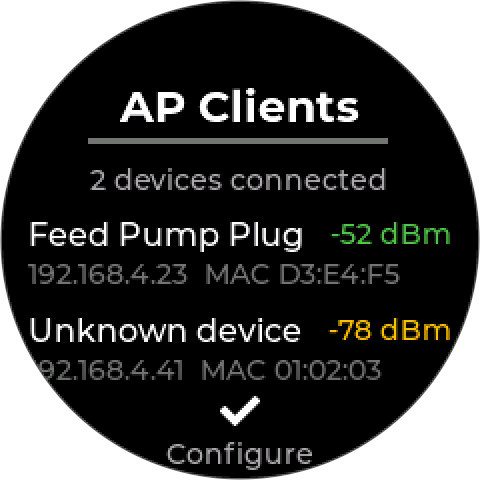
| Settings → Networking → AP Clients | Every device joined to the controller’s own network |
| Settings → Networking → QR Code | The code a phone scans to join the controller’s network. Down shows the network name and password as text. |
| WiFi light | Means |
|---|---|
| Solid green | Online, reporting, and added to an account |
| Green, slow blink | Reaching Inteliverse, but not added to an account yet |
| Amber, slow blink | On WiFi, but not reaching Inteliverse — usually internet or firewall |
| Red, slow blink | Can’t join the site WiFi |
| Solid blue | A phone is connected to the controller’s network |
| Off | WiFi switched off — see Running without WiFi |
See What the LEDs Mean for the full list.
¶ Troubleshooting
| Symptom | Check |
|---|---|
| WiFi light blinking red | The router is on and in range; the password has not changed. 401 |
| WiFi light blinking amber | The site has internet; outbound connections are not blocked by a firewall. 420 |
| Wireless devices unreachable after joining a new network | The site network may overlap the controller’s own — 412 |
| Rejected on the Inteliverse screen | The device record may have been deleted — re-provision. 423 |
| A phone or wireless device can never join the controller’s own network, and the network does not appear | On about 1 unit in 16, the factory password for the controller’s own network was too short to use, so the network never started. Upcoming firmware repairs it automatically at start-up; a password you set yourself is not changed. Update the firmware — see Firmware Updates. |