Wired devices on a two-wire RS-485 bus — water-quality probes, relay boards, and dosing pumps. Several devices share one daisy chain, each at its own address, and the controller polls them in turn.
See Supported Devices for exact models and channels.
Three rules for a stable bus. Almost every Modbus problem breaks one of them.
- A to A, B to B — at every device, checked against that device’s own wire colors.
- One address per device — no two devices on the bus share an address, including two of the same kind.
- One set of serial settings — every device uses the same baud rate, parity, and stop bits as the controller.
¶ What connects over Modbus
| Device | What it gives you | Default address | Port powered by default |
|---|---|---|---|
| Sensorex Smart Sensor (pH, conductivity) | Measured value, temperature, and a secondary reading | 240 | Yes |
| Pyxis ST-712 | pH, ORP (mV), temperature | 13 | Yes |
| Pyxis ST-710 (upcoming) | pH, temperature | 11 | Yes |
| Pyxis ST-500 | PTSA (ppb), turbidity (NTU), cleanliness | 10 | Yes |
| Pyxis CR-300 (upcoming) | General and localized corrosion, temperature | 23 | Yes |
| Pyxis LS-200, LS-202 (upcoming) | Tank level, distance, volume remaining and used | 66 | Yes |
| Legacy Relay Device 6 | Six relays, each switchable independently | 32 | Yes |
| NextStep Pump | Pump on/off, dosing rate, speed, total dosed, pump alarms | 1 | No |
What each probe shows, and its own settings, are on Modbus Probes.
¶ Port powered or externally powered
The Modbus port has a switched 24 V supply that can power the devices on the bus. Each device is set up as one of two kinds:
- Port powered — the device runs from the controller’s 24 V bus supply. Probes and the Legacy Relay Device 6 are normally wired this way.
- Externally powered — the device has its own supply and uses the bus only for data. A NextStep pump is always wired this way.
When you add a Modbus device, the controller asks Port powered? and suggests the usual answer for that device type. Answer for how the device is actually wired.
The answer changes what the controller is allowed to do. It can only reset or switch off a device by cutting the bus supply, so it only tries on devices that are port powered. Answering Yes for a device with its own supply gives it recovery the controller cannot deliver. Answering No for a port-powered device turns off recovery it could have had.
¶ Bus Power on and off
Settings → Modbus → Bus Power switches the bus supply on and off. It is on by default, so a probe wired to a new controller has power to answer when you add it.
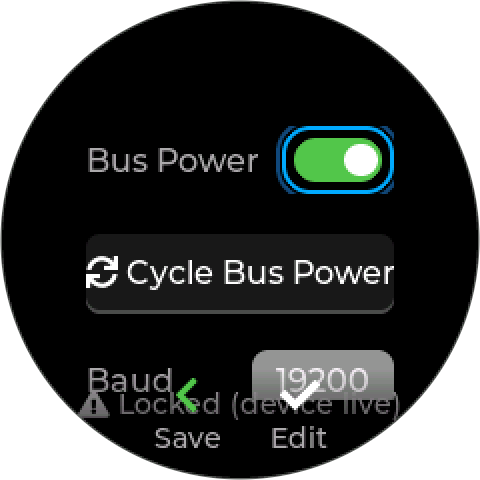
- Turning it off asks first when anything depends on it. The warning says what stops, for example 2 devices go offline. 1 control mode stops until power is back. Choose Turn off to go ahead. With nothing on the bus supply, it switches off at once.
- Port-powered devices go offline at once, not after a string of missed replies. Control modes that read them, drive them, or use them as interlocks go to their safe state, as for any lost device.
- The controller stops polling them while the supply is off, and automatic recovery stands down, so it never turns the supply back on against your setting.
- Turning it on applies at once. Each device comes back on its first good reading. A Legacy Relay Device 6 has its relays set again, and an LS-200/202 has its tank settings written again.
New in an upcoming firmware update. Earlier firmware has no switch: the supply is on only while at least one saved device is set as port powered.
A unit set up to take bus power from an External supply also shows a Source row (Hive Rail or External), so it can be switched back. The row does not appear otherwise.
¶ How the bus supply is switched
- It follows the Bus Power switch. An External source overrides it.
- It checks itself when it switches on, and while it runs. If the supply switch reports a fault — a short, an overload, or nothing connected to draw from it — the controller retries three times, two seconds apart. After that it holds the supply off, raises Modbus Supply Fault (620), and keeps talking on the bus without it, trying the supply again every 30 seconds. The data lines do not need the bus supply, so externally powered devices keep working.
- A power fault (600) cuts it. When input voltage drops below about 18 V the controller switches the bus supply off, so every port-powered device stops at once. It comes back when input power recovers.
¶ Automatic recovery
If a port-powered device stops answering for about 12 seconds, the controller power-cycles the bus once — supply off for half a second, then back on — to restart it. It then waits at least a minute before it will try again, so the devices have time to boot.
A power cycle restarts every port-powered device on the bus, not just the silent one. Other probes on the chain drop for a few seconds while they reboot. That is expected.
Externally powered devices are never power-cycled. If one goes silent, it stays disconnected until it answers again.
You can also power-cycle the bus by hand from Settings → Modbus → Cycle Bus Power. The confirmation says how many devices restart and how many control modes pause until they are back. On an externally powered bus this does nothing.
¶ Relays switched on by hand
Switching a Legacy Relay Device 6 relay On by hand is timed. If the time runs out and the controller cannot switch the relay off any other way, it cuts the bus supply — which drops every port-powered device, but guarantees the relay is off. That protection only exists when the Legacy Relay Device 6 is port powered.
¶ Bus settings
| Setting | Default | Choices |
|---|---|---|
| Baud rate | 9600 | 1200, 2400, 4800, 9600, 19200, 38400, 57600, 115200 |
| Parity | Even | None, Even, Odd |
| Stop bits | 1 | 1 or 2 |
Every device on the bus must use the same baud rate, parity, and stop bits as the controller. There is no negotiation. A device at different settings cannot understand anything on the bus — it just stays silent, and looks exactly like a wiring fault or a wrong address.
Devices do not all ship at the same settings, so a mixed bus usually needs some of them changed:
| Device | Ships at | Can it use the controller’s 9600 8E1? |
|---|---|---|
| InteliHive (the bus) | 9600 baud, 8E1 | — |
| Sensorex Smart Sensor | 19,200 baud, 8N1 | Yes — it supports 9600, 19,200 and 38,400 baud with 8N1, 8E1, 8O1 or 8N2 |
| NextStep Pump | 8N1 (no parity) | Change the pump or the bus so the parity matches |
| Pyxis probes | Not published — ask Pyxis | Check with the uPyxis app |
Pick one setting that every device on the bus supports, set each device to it with the manufacturer’s tool, then set the controller to match. Write the setting down for the site — the next person to add a device needs it.
The settings are locked while any device is connected, because changing them mid-session would cut off the devices that are working. Remove or disconnect devices first if the whole bus has to move.
¶ Addresses
Every device on the bus needs its own address, from 1 to 247. No two devices may share one — not even two of the same kind.
The usual mistake: a second device of the same kind, still at the factory address. Every device of a type ships at the same default (table above). Two Pyxis level probes both arrive at 66, and two Sensorex probes both at 240. Put the second one on a bus where the first is already at that address and both answer every request at once. Their replies collide and corrupt each other, so the controller loses the device it already had as well as failing to find the new one.
Give each device its own address before it shares a bus with another device at the same address. Most probes can be moved from the controller:
| Device | Default | Change the address |
|---|---|---|
| Sensorex Smart Sensor | 240 | From the controller. The probe restarts itself. Not yet tested on hardware. |
| Pyxis ST-500, ST-710, ST-712 | 10, 11, 13 | From the controller, then a power cycle. Not yet tested on hardware. Or over Bluetooth with the uPyxis app. |
| Pyxis LS-200, LS-202 | 66 | From the controller, then a power cycle. Tested on an LS-200. Pyxis does not document this procedure for these models, so the controller warns you and checks the result. Or over Bluetooth with the uPyxis app. |
| Pyxis CR-300 | 23 | From the controller, then a power cycle. Not documented by Pyxis for this model, and not yet tested on hardware: the controller warns you and checks the result. Or over Bluetooth with the uPyxis app. |
| NextStep Pump | 1 | On the pump’s own screen |
| Legacy Relay Device 6 | 32 | Per the board’s documentation |
Moving an address from the controller is new in an upcoming firmware update. Earlier firmware needs the manufacturer’s method. Where a move is not yet tested on hardware, try it on the bench before a site visit. A failed move changes nothing on the controller: the probe stays saved at its old address until it answers at the new one.
¶ Moving a probe to a new address
There are two ways in:
- While adding it. On the Found screen, press Up or Down to pick the address the probe should move to. The footer changes to Move. Press Enter to move it, or Back to add it where it was found. The probe is saved at its new address once the move is checked.
- A probe already saved. Open its options and choose Address. The row shows the current address.
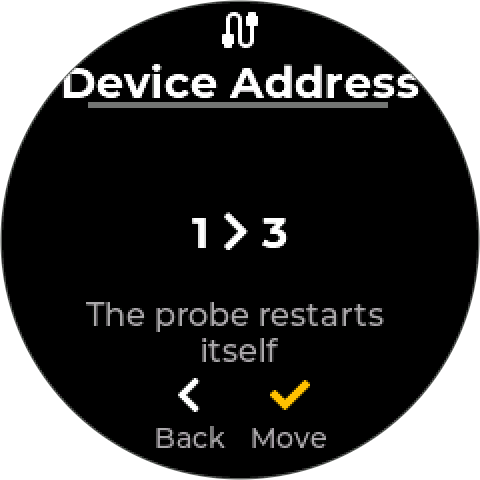
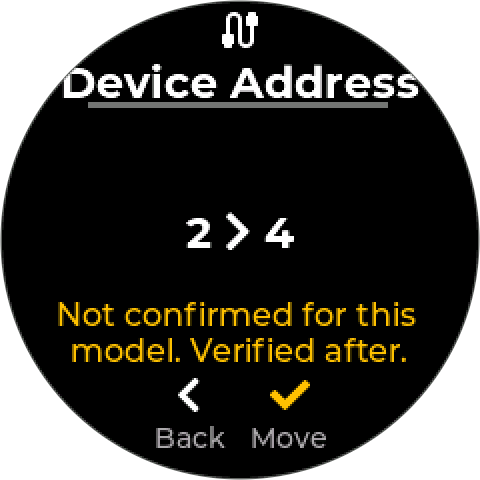
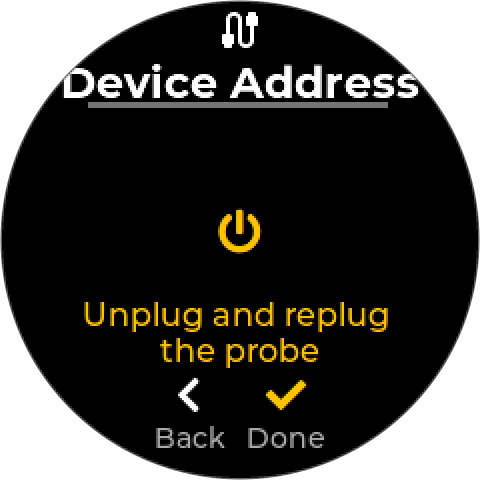
- Pick the new address. If another saved device already has it, the screen says That address is in use.
- Confirm the move. The screen shows the move, for example 2 › 4, and what happens next:
- The probe restarts itself — a Sensorex probe.
- You will power cycle the probe — a Pyxis probe.
- Not confirmed for this model. Verified after. — a CR-300 or LS-200/202. The move is attempted and checked in the same way.
- Power cycle a Pyxis probe when asked. If the probe is powered from the bus, choose Restart: the controller switches the bus supply off for 2 seconds and on again. The screen says how many other bus-powered devices restart with it, because a Legacy Relay Device 6 drops its outputs too. If the probe has its own supply, or the restart cannot run, the screen asks you to unplug and replug the probe. Then choose Done.
- Wait while it checks. The screen shows Waiting for it to start…, then Checking address 4…. A Pyxis probe can take up to 30 seconds to start.
- Done. A saved probe shows Now on 4. and what was moved with it.
Moving a saved probe changes its identity everywhere. The controller moves the probe’s limits, calibration records, and every control mode and interlock that uses it, all at once and only after the probe answers at its new address. If any part fails, everything stays at the old address, so you can retry.
The cloud sees the move as a new device, so the probe’s history in the Inteliverse splits at the move.
¶ If a move fails
After a failed move the probe could be at either address, so the controller asks you to look:
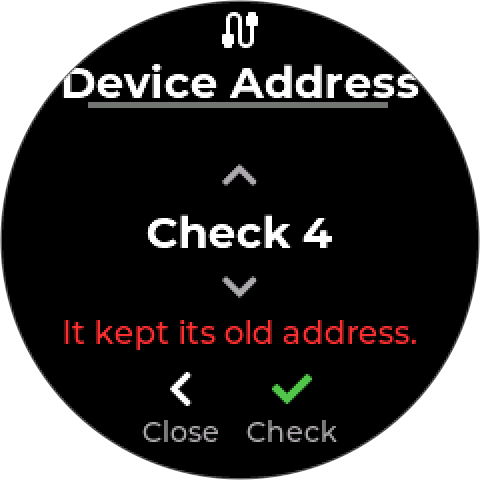
| Choice | Does |
|---|---|
| Check new | Looks for the probe at the new address. Offered once anything was written. |
| Check old | Looks for the probe at its old address |
| Forget it | While adding: leaves Add Device |
Found at the new address, the move is complete. Found at the old address, you can try again. While adding, a check returns to the Found screen at that address.
| Message | Means |
|---|---|
| It kept its old address. | The probe answered at the old address after the restart, so it did not take the move. The controller writes the old address back into the probe, so it cannot move later by surprise. |
| No reply at the new address. | Nothing answered at either address. Check it has power, then check both addresses. |
| The probe rejected the address write. | The probe refused the new address |
| No reply to the address write. | The probe did not answer the write |
| Moved, but the Hive could not follow it. | The probe is at the new address, but the controller could not update its records and still has it at the old one. Its control modes will not find it. Contact support before changing anything else. |
| Added here - use its device page | Moving a saved probe from outside its own options is refused. Use its Address row. |
| That address is in use | Another saved device has the address. Pick another. |
¶ Adding more than one of the same device
- Plan the addresses first. Give each device its own number and write it on a label on the device and its cable. For example: first level probe 66, second 67; pH probe 240, conductivity probe 241.
- Connect the new device as the only one at its default address. Disconnect any other device still at that address, or move that one first.
- Add it and move it in the same step, from the Found screen. Confirm a reading.
- Then connect the next one and repeat.
Two devices at the same address cannot be told apart — not even to move one of them. If it happens, disconnect one, move the other, then reconnect.
¶ What the controller tells you
When you add a device, the controller asks the address first and then checks what answers there:
| The controller shows | It means |
|---|---|
| Device found! (or Found: and the probe type) | One device of the chosen type answered. Add it, or pick a new address to move it to. |
| Already added | A device of this type is already saved at this address. If you are adding a second one, it still needs its own address — two devices at this address will fight. |
| Address in use — “… is configured at address n. Replace it…?” | A different kind of device is saved at this address. Replace it only if you really swapped the device; otherwise pick another address. |
| No response | Nothing answered: wrong address, wrong serial settings, A and B swapped, or the device is still booting. |
For about ten seconds after power-up, every Sensorex probe answers on its factory settings — address 240, 19,200 baud, 8N1 — whatever it is set to. That is how they are recovered when their settings are lost. With several Sensorex probes on one bus, give the bus that time before expecting readings — the controller waits for it.
¶ Wiring the bus
Isolate power before working on the bus. See Safety.
¶ A and B
Connect A to A and B to B at every device. This is the most common Modbus wiring fault. A swapped pair does no damage, but that device never answers.
Wire colors are not the same from one manufacturer to the next — check each device’s own colors rather than matching colors along the bus:
| Device | A | B |
|---|---|---|
| Sensorex Smart Sensor | White | Green |
| Pyxis ST-712, ST-500, and other Pyxis probes | Blue | Yellow |
Do not wire by color. A Sensorex probe’s white wire is Modbus A, but a Pyxis probe’s white wire is its 4–20 mA output. Some manufacturers also mark the lines +/−, D+/D−, or TX+/TX−, and a few label A and B the opposite way round to everyone else. Follow each device’s own documentation.
If one device will not answer and its address and settings are right, swapping its A and B wires is a safe test.
¶ Termination
The bus needs a 120 Ω terminator across A and B at each of its two physical ends, and nowhere in between.
- The controller has one built in, switched in by a DIP switch on the board. The controller is normally at one end of the chain, so switch its terminator on. Switch it off only if the controller sits in the middle of the bus.
- Fit a 120 Ω resistor across A and B at the last device on the chain, unless that device has its own terminator to switch on.
- Do not terminate every device. Extra terminators load the bus and cause the same dropouts as missing ones.
On a short bus with one or two devices, a missing terminator often still works — until a cable run gets longer or a drive starts nearby. Terminate both ends anyway.
¶ Layout
- Daisy chain, not a star. Run the bus from device to device. Spurs and star layouts cause reflections that corrupt traffic.
- Keep it away from power conductors. Cross at right angles if you must. Long unshielded runs near variable-frequency drives are the usual cause of intermittent dropouts.
- Size the input supply for the bus load. Port-powered devices draw from the controller’s 24 V input. See Wiring.
¶ Adding a device
- Set its serial settings to match the bus, then wire it into the chain — A to A, B to B. If another device is already at its default address, disconnect that one or move it first.
- On the controller, go to Add Device → Modbus Device and choose the device type. Types that share a default address and a manufacturer share one row: the Pyxis LS-200 and LS-202 are LS-200/202 Level, and the controller reads which model it is once it answers.
- Answer Port powered? for how it is wired.
- Confirm the address. The controller contacts the device and checks that it is the type you chose.
- On the Found screen, add it where it is, or pick a new address and move it there — see Moving a probe to a new address.
- A CR-300 asks for its metal before it is saved — see Choosing the metal. An LS-200/202 needs its tank settings before it shows a level — see Tank settings.
- Confirm a plausible reading before using it in a control mode.
Sensorex probes take more than ten seconds to start. The controller waits for them, so a probe that is slow to answer right after power-up is normal.
¶ Identity checks
The controller checks the device at each address is the device it expects — its type, and where the device reports one, its serial number. A mismatch raises Device Conflict (102) and the device is not used until it is resolved.
- You replaced a probe with the same type. Its Info shows Serial Conflict: choose Accept Replacement, then Accept. The replacement keeps the old one’s control modes and settings.
- You put a different type at that address. Its Info shows Type Conflict: choose Remove Device, then add the new one as a new device. The old device’s control modes are kept enabled but blocked, with their output in its safe state, ready to point at the new one — see Blocked modes.
The NextStep pump reports no serial number, so only its type is checked. The Pyxis ST-712, ST-710, CR-300 and LS-200/202 are not identity-checked yet — the controller only checks that something answers at the address — so a swapped probe of another type does not raise a conflict. Label each probe’s address on its cable.
¶ Troubleshooting
Start with how many devices dropped.
| Symptom | Likely cause | What to do |
|---|---|---|
| Every device dropped at once, Power light blinking red | Input power fault | Fix input power first — see 600. The bus recovers on its own. |
| Every port-powered device dropped, externally powered ones still fine | Bus supply off or faulted | Check Settings → Modbus → Bus Power is on. Otherwise see Modbus Supply Fault (620) and check for a short on the bus supply wiring. |
| Every device dropped, power is fine | Bus wiring | Check the trunk: polarity, termination at both ends, a broken conductor near the controller. |
| All devices drop together every minute or so | Automatic recovery power-cycling a silent device | Find the port-powered device that is not answering and fix or remove it. |
| A device dropped as soon as a second one of the same kind was connected | Two devices at the same address | Disconnect the new device, give it its own address, then reconnect it. See Addresses. |
| One device dropped | That device or its cable | Check its supply, connector, and cable; confirm its address. |
| One new device never answers, the others are fine | A and B swapped, or different serial settings | Check its A and B against its own wire colors; confirm its baud rate and parity match the bus. |
| Device Conflict (102) | Different device at that address | See Identity checks. |
| Won’t add — no answer at the address | Wrong address, wrong bus settings, or still booting | Confirm the address and the bus settings match the device. Allow Sensorex probes ten seconds. |
| A second probe of the same kind won’t add | Both at the factory address | Disconnect the first, add the second and move it from the Found screen, then reconnect the first. See Adding more than one of the same device. |
| An address move failed | The probe did not take the address, or did not restart | See If a move fails. |
| A level probe shows No tank set | Tank settings not entered | Open its options, Configure. See Tank settings. |
| An ST-500 shows Fouled | Dirty optics | Clean the probe, then calibrate it. See Error 340. |
| Can’t change bus settings | A device is connected | Settings are locked while any device is online. |
| NextStep pump won’t add | Parity mismatch | The pump ships at 8N1 (no parity); the controller defaults to Even parity. Set one to match the other. |
| Readings drop out intermittently | Electrical noise, or termination | Reroute the bus away from drives and power conductors. Check there is a terminator at both ends — the controller’s DIP switch on, a resistor at the last device — and none in between. |
For any dropout, the controller raises Device Disconnected (100) and drives the control modes that use the device to their safe state.
¶ Related
- Devices
- Modbus Probes — what each probe shows, and its own settings
- Supported Devices
- Wiring
- Modbus Register Map
- Error 100 — Device Disconnected
- Error 600 — Power Fault
- Error 620 — Modbus Supply Fault