Mains-powered WiFi switches and outlets that the InteliHive controls directly. Their terminals and outlets carry line voltage whatever the controller is doing — see Electrical Safety. Use them to switch a pump or outlet where running a cable back to the controller is impractical.
See Supported Devices for exact models.
¶ What connects over WiFi
| Device | Outputs | Failsafe |
|---|---|---|
| Wireless Relay Expander | 2 outlets | Turns both relays off if it loses WiFi for 5 seconds |
| Wireless Relay Strip | 3 or 6 outlets | Turns outlets off if the controller has not renewed the timer within 30 seconds |
Each relay or outlet is a separate channel, so one power strip can switch several loads, each driven by a different control mode.
¶ The controller’s own network
Wireless devices do not join the site’s WiFi. The InteliHive runs its own WiFi network, and pairing moves each device onto it. The controller talks to them directly, so switching needs no router, no internet connection, and no vendor cloud.
What this means in practice. Site network problems — a router restart, an expired DHCP lease, a guest-network or VLAN change — do not affect wireless devices. If the internet goes down they keep switching normally. Only cloud reporting to Inteliverse stops.
What matters instead is the device’s distance from the controller. Each device must be within WiFi range of the controller itself, not of the site’s access points.
The controller’s network is named after the controller and its MAC address. It uses the address range 192.168.44.x by default. If the site network already uses that range, the controller moves its own network to another private range automatically. Paired devices reconnect by themselves, with a short dropout while they do.
¶ Failsafes
A wireless output sits at the end of a radio link, and radio links fail. Every wireless output is therefore given a failsafe when it is added: if contact with the controller is lost, the device switches itself off.
The controller refuses to add an output it cannot give a failsafe. A dosing pump that keeps running because the controller went offline is a chemical overdose, so a device that cannot fail safe is not allowed to be an output at all.
- Wireless Relay Expander runs a small script on the device. If the expander loses its WiFi connection for 5 seconds — the controller is powered down, restarting, or out of range — it turns both relays off.
- Wireless Relay Strip runs a countdown timer on each outlet. The controller renews it on every poll; if 30 seconds pass without a renewal, the outlets turn off.
Both failsafes work without the controller — that is the point. When contact returns, the controller re-installs the failsafe, reads each output’s real state, and restores the position the control mode wants. A device that restarted does not sit in the wrong state.
A failsafe is not personnel protection. Physically isolate any pump or valve before working on it — see Isolating Equipment.
¶ Limits
- Up to 20 wireless devices can be saved on one controller.
- Up to 4 can be active at a time. Plan larger installations around wired relays such as the Legacy Relay Device 6.
¶ Adding a device
A new device starts its own setup WiFi network. The controller uses it to hand over the credentials for the controller’s network.
-
Power the device and put it in pairing mode, per the manufacturer’s instructions. A new device is usually in pairing mode out of the box.
-
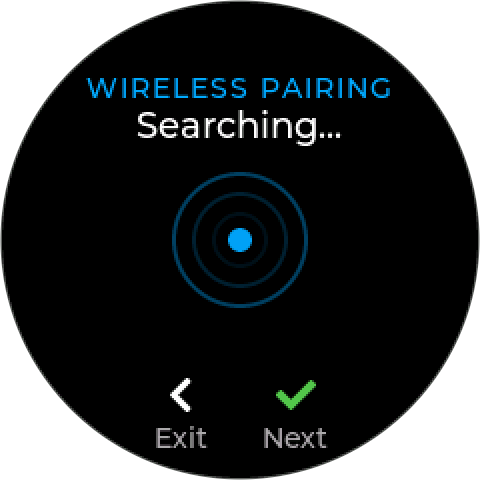
On the controller, go to Add Device → Wireless Device. It lists the setup networks it can see.
-
Choose the device. The controller joins its setup network, sends the credentials, waits for the device to join, confirms it is a supported model, and saves it.
-
Confirm the outputs respond before using them in a control mode.
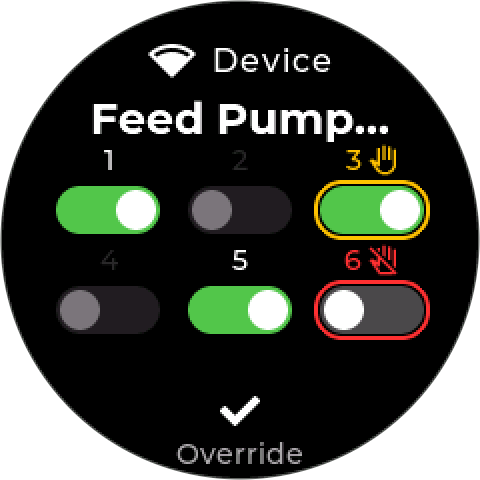
A device that is already on the controller’s network can be added directly, without pairing.
Pairing briefly disturbs other wireless devices. While pairing, the controller retunes its WiFi, and devices already paired may drop for a moment. Failsafes are designed to ride this out, but avoid pairing while a critical feed is running.
¶ Removing a device
Removing a wireless device also clears its pairing, so it does not keep trying to reach the controller:
- A Wireless Relay Expander is factory reset. Re-adding it needs the full pairing steps.
- A Wireless Relay Strip has its outlets switched off, but it keeps its pairing. To use it with another controller, hold its reset button for about 10 seconds, then pair it again.
Control modes that used the device are kept enabled but blocked, with their output in its safe state, ready to point at another output — see Blocked modes. Interlock rules that referenced it are kept and block their mode until re-pointed — see Interlocks. (Earlier firmware disabled the modes and deleted the interlock rules.)
¶ Troubleshooting
| Symptom | Likely cause | What to do |
|---|---|---|
| Not sure whether a device is on the network | — | Settings → Networking → AP Clients lists every device joined to the controller’s network. |
| Device drops out, comes back | Weak signal at the device | Move the device or the controller closer; reduce metal and walls between them. |
| All wireless devices dropped at once | Controller’s network restarted or moved | Check the alarm history for 412 — a network address conflict — and whether a device was being paired. |
| Device stays offline, outputs off | Device lost mains power, or is out of range | Check its supply first — it does not draw power from the controller. |
| Pairing does not find the device | Not in pairing mode, or still paired elsewhere | Reset it to pairing mode per the manufacturer’s instructions. |
| Pairing finds it but fails | Unsupported model or firmware | Only the models listed in Supported Devices are accepted. |
| Can’t add another device | Limit reached | Up to 20 can be saved and 4 active at once — remove one first. |
| Output turns off by itself | The failsafe fired | Contact with the controller was lost long enough to trip it. Fix the link; the output resumes when contact returns. |
| Swapped a device, won’t connect | A different device at a saved identity | Remove the old device and add the new one. |
For any dropout, the controller raises Device Disconnected (100) and drives the control modes that use the device to their safe state.
Wireless devices are unaffected by a power fault (600). They have their own mains supply. If wireless devices keep working while every wired device drops, look at controller input power.