Pairing the Repressurizer’s controller with the Inteliverse app, setting its pressure thresholds, and connecting it to WiFi.
For a short version with a video walkthrough, see the Quick Start Guide.
¶ Before you begin
- The system is installed, powered on, and has finished booting — the status light is blinking green.
- You have a phone or tablet with the Inteliverse app installed:
- You have an Inteliverse user account. If not, register at inteliverse.app/signup. If your company already has an account, self-registration adds you to the company profile.
- Ideally, a WiFi network with internet access is ready and live at the site.
Stay within about 15 feet of the controller. Your phone connects to it directly over Wi-Fi Direct, which has limited range — shorter in noisy environments.
The app asks for location and camera permissions during setup. Both are needed to find and connect to the controller.
¶ Setting up
-
Open the app and sign in.
-
Go to the location and process the system belongs to, or create new ones.
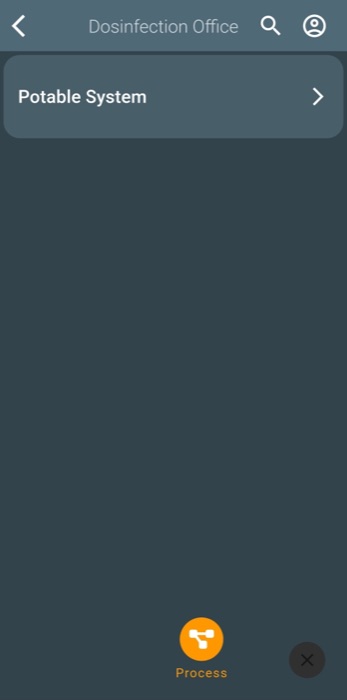
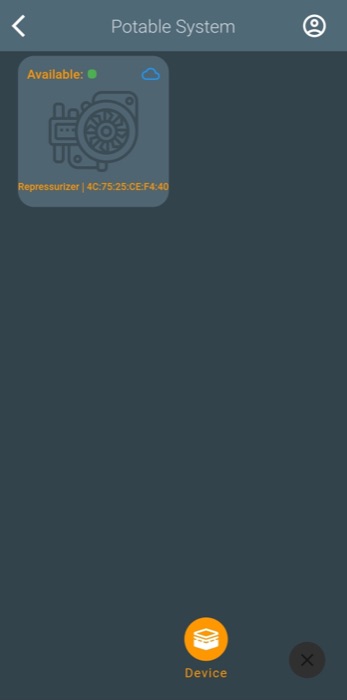
-
Check the controller’s status light is still blinking green.
-
In the process, tap + at the bottom right, and allow the permissions it asks for.
-
Point the camera at the QR code on the controller, and tap Connect to device. Accept when your phone asks to join the controller’s network.
Scan within 5 minutes of powering on. After 5 minutes with no phone connected, the controller turns its own network off. Press the HOA button to turn it back on — the status light shows pink for 5 seconds — or power the controller off and on. The press can also change the pump’s HOA state, so check it is back in Auto afterwards.
-
Pairing takes 30–60 seconds. When it succeeds, the status light alternates blue and green.
-
Press the arrow at the bottom of the screen and work through the wizard:
-
Device name
-
Pressure thresholds — the low and high set points
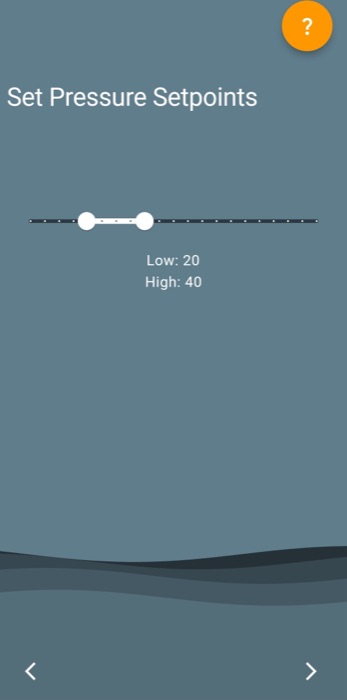
-
HOA status — normally Auto
-
WiFi — pick the site network and enter its password. Optional, but needed to view and manage the system remotely. To skip it, tap Skip WiFi Setup — see Setting up without internet.
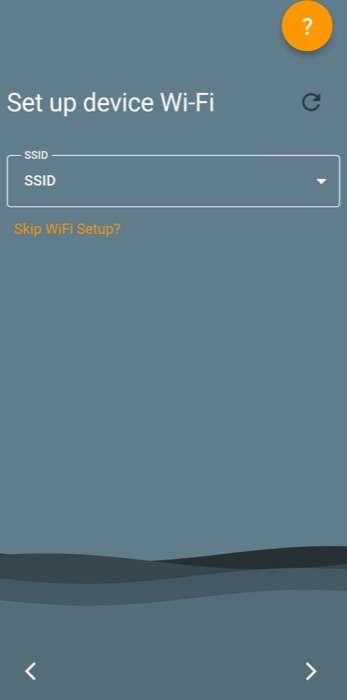
-
-
With WiFi set, the controller connects to the cloud, then the app claims it: it sends a claim to the controller, disconnects from it, and registers it with Inteliverse under your location and process. This step takes the longest.
-
A green success message confirms it, and the app opens the device overview.
Proper operation needs a live internet connection. Online, the system can be configured remotely and sends alarms when something goes wrong. Offline, it controls pressure but nobody is notified of an alarm except by the alarm light.
¶ Setting up without internet
Site WiFi or cell coverage is not always available at first. The controller and the app can both do basic setup locally, and the system controls pressure without internet.
With cell coverage on your phone, follow the steps above and tap Skip WiFi Setup at the WiFi page. The app goes straight to the device page.
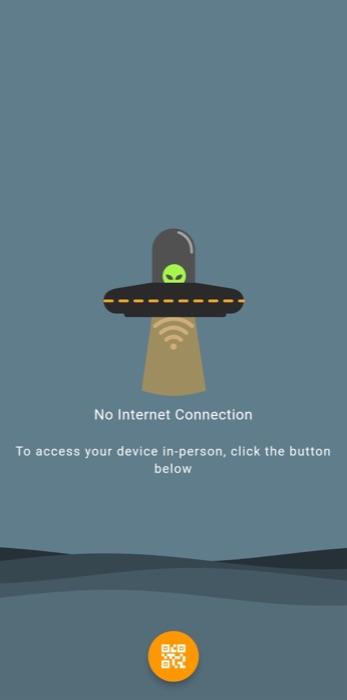
Without cell coverage, the app opens on an offline splash screen. Tap the orange circle to scan the controller’s QR code, and accept pairing over Wi-Fi Direct. Pairing disconnects your phone from any other WiFi network.
Once paired, the app opens the device page. A blue antenna at the top left shows you are connected directly rather than through the cloud. From this page you can:
- change the pump’s HOA — tap the pump status;
- adjust the high and low set points — tap the pressure gauge.
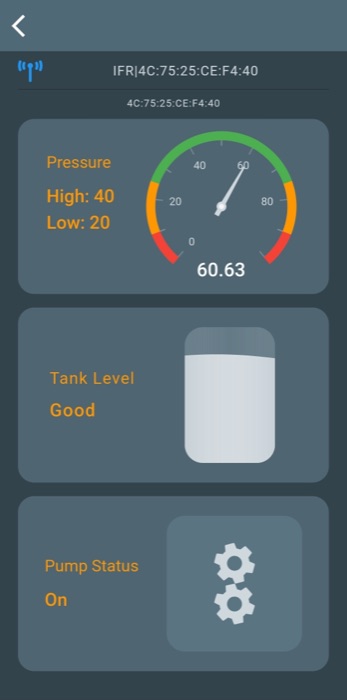
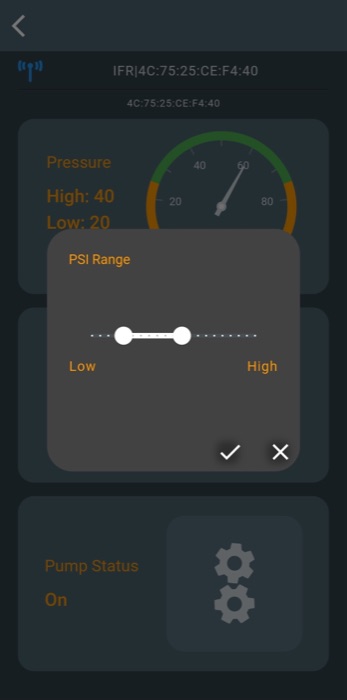
While any phone is connected directly, the status light blinks blue and green.
¶ Adding WiFi on an iPhone (workaround)
If the app cannot pass WiFi details to the controller on an iPhone, set them through the controller’s own setup page:
-
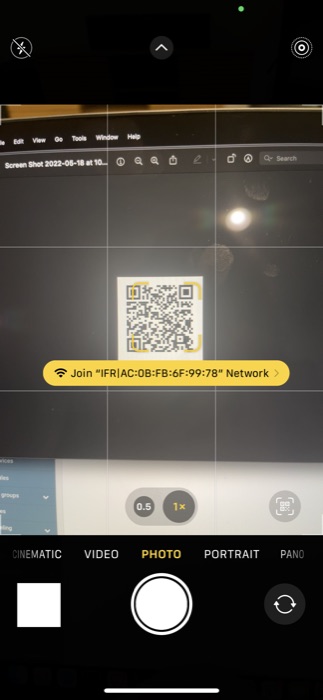
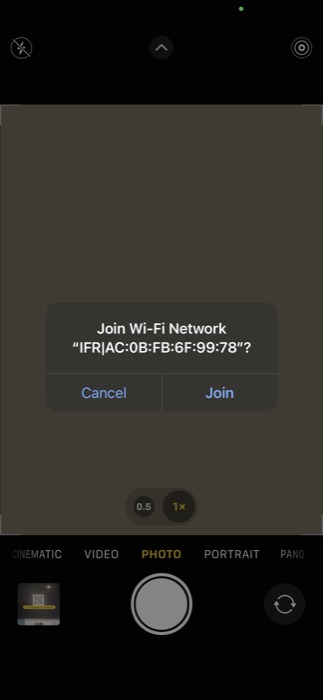
Open the Camera and point it at the controller’s QR code.
-
Tap Join “{network name}” Network, then Join. The status light alternates blue and green.
-
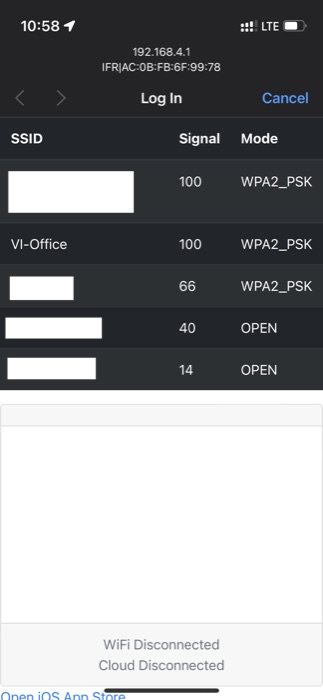
A login screen should appear. If it doesn’t, open Settings → Wi-Fi, which should bring it up — or open a browser and go to
http://192.168.4.1. -
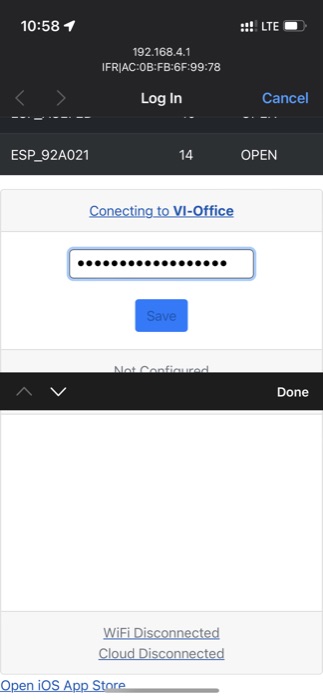
Choose the site’s WiFi network, type its password, and press Save.
-
Check the status light turns solid green. If it is still alternating blue and green, disconnect from the controller’s network in the iPhone’s WiFi settings.