One harmless task — setting the controller’s clock by hand — that teaches the four buttons and how every screen works. Do it once on a new controller, and the rest of this manual will read easily.
Nothing in this task switches an output or changes a control mode.
¶ The four buttons
| Button | Does |
|---|---|
| Up and Down | Move between tiles, list items, and fields — or change the value in a field. Hold to keep going. |
| Enter (✓) | Choose, or do what the hint at the bottom of the screen says |
| Back (←) | Go back one step |
Read the hints. The bottom of every screen names what Back and Enter do right now — Next, Set, Save, Cancel. They change from screen to screen, so when in doubt, look down.
¶ Set the clock
¶ 1. Find the Settings tile
The home screens are a loop of tiles — alarms overview, control modes, devices, and Settings last. Press Down until the Settings tile appears. Because the tiles loop, one press of Up from the first tile also gets there. The dots down the side show where you are in the loop.
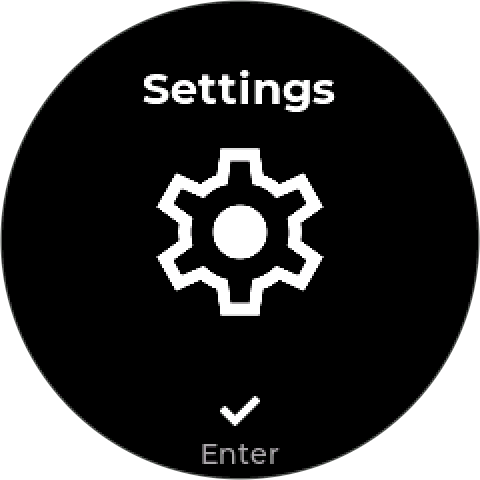
Press Enter.
¶ 2. Open Date & Time
The Settings menu curves around the display, with the selected item in bold, in the middle. Press Down until Date & Time is selected, then Enter. It opens a short submenu.
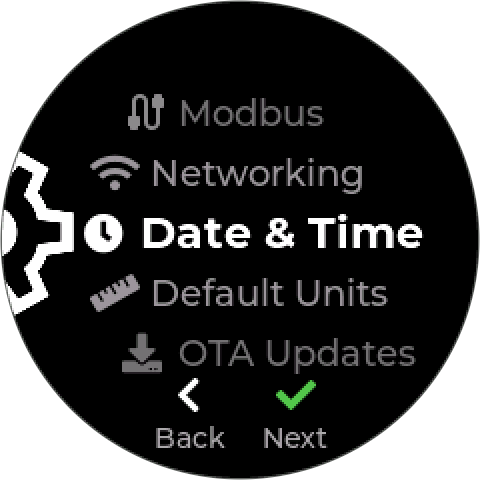
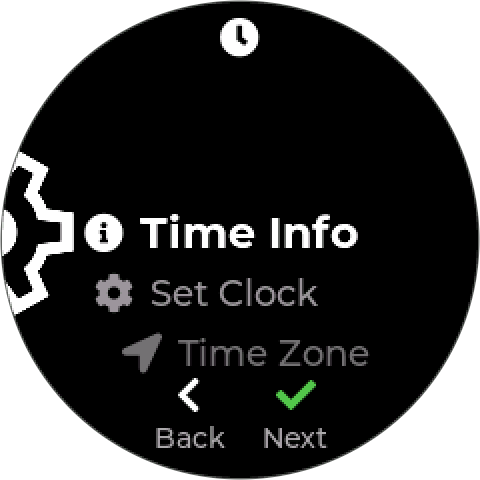
Press Down once to Set Clock, then Enter.
¶ 3. Change the date and time
The screen shows month, day, year, hour, minute, and AM/PM as separate fields. The one outlined in blue is the one you are changing; the label under it says which (MM, DD, YYYY).
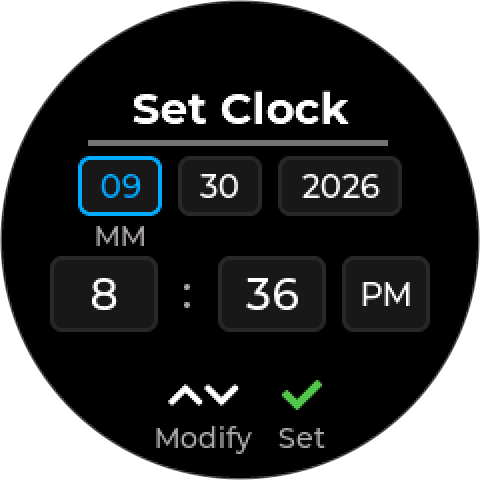
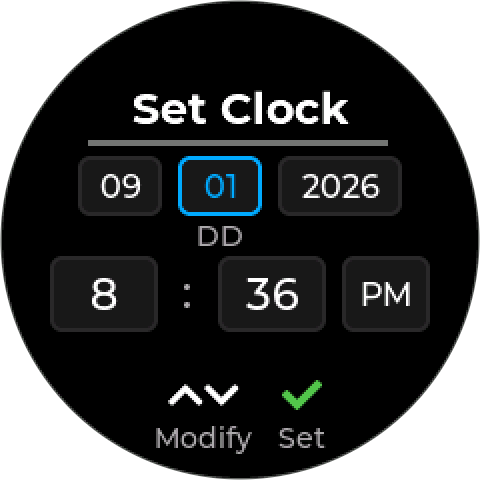
- Up / Down change the highlighted field (Modify in the hints). Hold to run through the numbers.
- Enter moves to the next field (Set).
- Back moves to the previous field.
Work through to AM/PM and press Enter once more. The controller says Clock set and returns to the menu.
¶ 4. Get back to the home screen
Press Back until the home tiles appear: once to the Settings menu, once more to the Settings tile. There is no single button that jumps home from deep in a menu.
¶ What you just learned
- Up and Down move, and change values. In a list they move the selection; in a field they change the number.
- Enter goes forward; Back goes back — one step at a time, never further than you expect.
- The hints are the truth. Every procedure in this manual names the hint you will see.
- Leaving with unsaved changes asks first. Press Back out of an editor you have changed and the controller offers Save, Discard, or Cancel.
If the controller is online, network time takes over. It sets its clock from the internet whenever it can, so a clock you set by hand is corrected the next time it connects. Setting it by hand matters for a controller that runs without WiFi.
Every screen and setting is laid out in the Menu Map.