What each item in the controller’s Settings menu does.
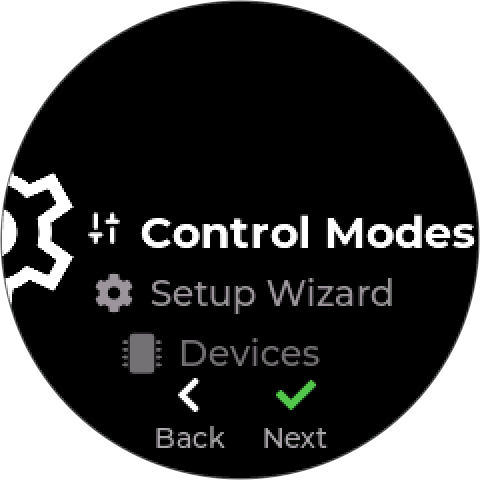
The menu curves around the round display; Up and Down move through it, Enter opens an item.
¶ Control and devices
| Item | Does |
|---|---|
| Control Modes | Add, edit, enable, and delete control modes. See Control Modes. |
| Setup Wizard | Run setup again — keeps the profile and rebinds device roles. Shown on the Boiler and Closed-loop profiles only. See Starting Up. |
| Devices | Every device, with its readings, Hand, Off, Auto, calibration, and limits |
| Modbus | Bus Power on or off, a manual bus power cycle, and the bus settings — baud rate, parity, stop bits. See Modbus RTU devices. |
| Default Units | Display units — see below |
¶ Networking
Settings → Networking.
| Item | Does |
|---|---|
| Network Info | WiFi, signal, addresses, internet and server reachability. Enter switches WiFi off or on — the footer reads WiFi Off or WiFi On. See Running without WiFi. |
| Known Networks | Saved site networks, marked Connected or Saved. Choose one to join it. Add Network opens the QR code, to add a network from a phone. |
| AP Clients | Devices joined to the controller’s own network |
| QR Code | The code a phone scans to join the controller’s network. Press Down (Troubleshoot) to show the network name and password as text. |
| Inteliverse | Cloud status. Menu offers Reconnect and Re-provision. See Network and Cloud. |
¶ Date & Time
Settings → Date & Time.
| Item | Does |
|---|---|
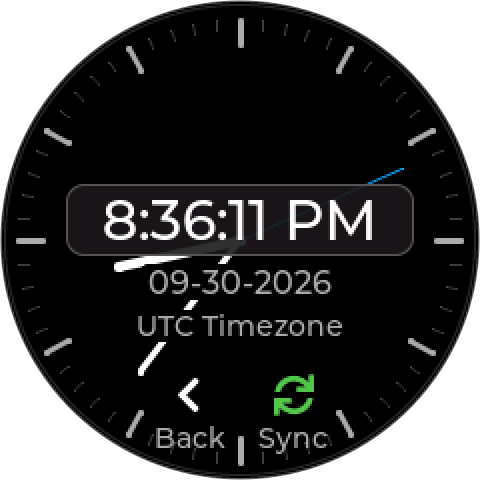
| Time Info | Current time and whether it is trusted. Enter (Sync) asks for network time now — and the time zone too, when it is set to Automatic. Needs WiFi. |
| Set Clock | Set the date and time by hand |
| Time Zone | The controller’s local time zone — schedules run in local time. Automatic uses the zone the controller detects once online, shown as Using …; or pick a US time zone. |
| Time Format | AM/PM or 24 Hour |
¶ System
| Item | Does |
|---|---|
| OTA Updates | Check for and install firmware. See Firmware Updates. |
| Manual | A QR code for this manual, to open it on a phone (upcoming firmware) |
| System Info | Firmware version and build, and the main and port board revisions |
| Reboot | Restart the controller |
| Factory Reset | Erase everything — see below |
¶ Default Units
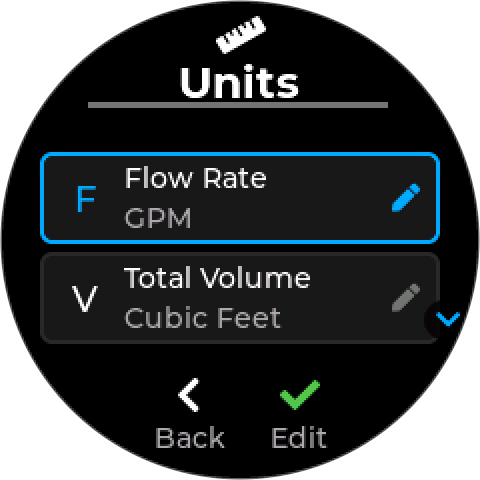
The units readings and settings are shown in. They change the display only; stored values do not change.
| On the screen | Choices |
|---|---|
| Flow Rate | GPM, LPM, m3/h |
| Total Volume | Gallons, Cubic Feet, m3 |
| Pressure | PSI, Bar, Ft Head |
| Length | Inches, Millimeters, Centimeters, Feet |
Temperature (°C or °F) and conductivity (mS/cm or ppm) display units exist too, but are set from the app, not on this screen.
¶ Factory Reset
Factory Reset erases all settings — control modes, devices, network, calibration, and the profile lock. It also factory-resets each paired Wireless Relay Expander, which has to be paired again afterwards. A Wireless Relay Strip only has its outlets switched off: it keeps its pairing, so hold its reset button for about 10 seconds before pairing it to another controller.
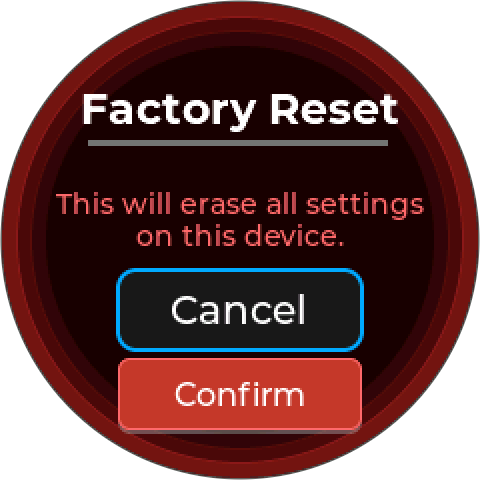
The controller stops its control modes first, then asks for a Final Confirmation. Afterwards it starts again at Welcome, as if new — see Starting Up.