Every screen and setting on the InteliHive controller, laid out as one tree so you can find any setting in two glances.
Some screens still show older device names. This page uses the current names — Legacy Relay Device 6, Wireless Relay Expander, Wireless Relay Strip, Pyxis ST-500, Pyxis ST-712. A firmware update will bring the screens in line.
¶ The buttons
| Button | On the home screens | In menus, lists, and editors |
|---|---|---|
| Up | Previous tile | Move up. Hold to keep scrolling. |
| Down | Next tile | Move down. Hold to keep scrolling. |
| Enter (✓) | Opens the tile — see Home screens | Select the highlighted item, or run the action named at the bottom of the screen — Next, Pick, Edit, Menu, Save |
| Back (←) | Opens a device tile’s device menu. Does nothing on the other tiles. | Go back one screen. In a submenu, back to the parent menu. Closes a popup. |
The hints at the bottom of each screen name what Back and Enter do there. They change from screen to screen — in the calibration steps, for example, Back reads Exit.
Getting back to the home screen: press Back until the home tiles appear. From the Settings menu, one Back returns to the Settings tile. There is no single button that jumps home from deep in a menu.
Leaving an editor with unsaved changes asks Unsaved changes — Save, Discard, or Cancel to stay.
¶ The whole tree
HOME SCREENS  (Up / Down between tiles)
├── Overview ................... Enter → Alarms
│   └── Alarms ................. filter · Ack All · (alarm) → Ack · Device/Limits · Help (QR)
│       ├── Viewing: ACTIVE / HISTORY
│       ├── Acknowledge All
│       └── (alarm) → details → Acknowledge
├── Inteliverse ................ only until added to an account, or while the cloud needs attention
├── (one tile per control mode)  Enter → that mode's Review & save
│   └── No modes yet ........... Enter → create the first mode
├── Devices .................... Enter → device list (Add Device when there are none)
├── (one tile per device) ...... Enter → the device's main action · Back → device menu
└── Settings ................... Enter → Settings menu

SETTINGS
├── Control Modes
│   ├── Add mode
│   │   ├── Choose type ........ Set Point · Percent Timer · Volume Dosing · Calendar*
│   │   ├── Select input ....... Set Point and Volume Dosing
│   │   ├── Select output
│   │   ├── Tune behavior
│   │   ├── Choose sampling .... Set Point: Continuous · Timed Sample · Sample & Hold
│   │   ├── Set sample timing .. not for Continuous
│   │   ├── Add interlocks
│   │   ├── Name mode
│   │   └── Review & save
│   └── (mode) → Review & save
│       ├── ENABLED
│       ├── NAME · TYPE · PARAMETERS (Calendar: PROGRAM) · SAMPLE · INPUT · OUTPUT · INTERLOCK
│       ├── Delete
│       └── Save
├── Setup Wizard ............... Boiler and Closed-loop profiles only
├── Devices
│   ├── Add Device
│   │   ├── Modbus Device → Select Probe → Port powered? → Set Address → Found → Add, or Move
│   │   ├── Wireless Device → Wireless pairing → Pair → Done
│   │   └── IO-Link Device → Select Port → Port A · Port B
│   └── (device) → device page → Enter (Menu)
│       ├── Info
│       ├── Control ............ NextStep pump
│       ├── Configure .......... relay outputs, IO-Link contacts, tank settings
│       ├── Label .............. Pyxis LS-200/202*
│       ├── Metal .............. Pyxis CR-300*
│       ├── Limits ............. Modbus sensors
│       ├── Calibrate .......... Sensorex Smart Sensor; Pyxis ST-500, ST-710, ST-712, CR-300*
│       ├── Used by
│       ├── Reset counter ...... IO-Link contacts
│       ├── Address ............ Modbus probes*
│       └── Remove Device
├── Modbus
│   ├── Bus Power .............. On / Off switch*
│   ├── Cycle Bus Power
│   ├── Source ................. Hive Rail · External — only on a unit set to External*
│   └── Baud · Parity · Stop bits
├── Networking
│   ├── Network Info ........... Enter: WiFi Off / WiFi On
│   ├── Known Networks ......... saved networks · Add Network
│   ├── AP Clients
│   ├── QR Code ................ Troubleshoot → network name and password as text
│   └── Inteliverse ............ Menu → Reconnect · Re-provision
├── Date & Time
│   ├── Time Info .............. Enter: Sync
│   ├── Set Clock
│   ├── Time Zone .............. Automatic, or pick one
│   └── Time Format ............ AM/PM · 24 Hour
├── Default Units .............. Flow Rate · Total Volume · Pressure · Length
├── OTA Updates
├── Manual ................... QR code for this manual
├── System Info
├── Factory Reset .............. Confirm → Final Confirmation
└── Reboot ..................... restarts at once

* Calendar is offered on field-test firmware only. Label, Metal, Address, the Pyxis calibrations, and the Bus Power switch are in upcoming firmware; earlier firmware shows Bus Power as Hive Rail · External.
¶ Home screens
The home screens are a loop of tiles, always in this order. The Inteliverse tile, and a tile for each device, appear only when they apply.
| Tile | What it shows | Enter | Covered in |
|---|---|---|---|
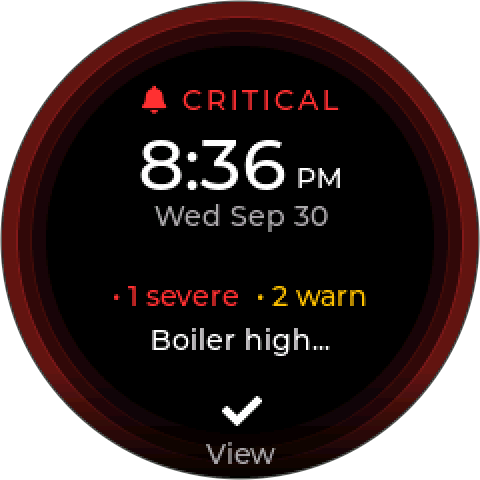
| Overview | Time, date, and a summary of alarms | Opens Alarms | Alarms |
| Inteliverse | Cloud status, or a QR code to add the unit to an account | Opens the Inteliverse screen | Network and Cloud |
| Control mode (one per mode) | The mode’s reading, output, and phase — or Starting… in its first 30 seconds | Opens the mode’s Review & save page | Control Modes |
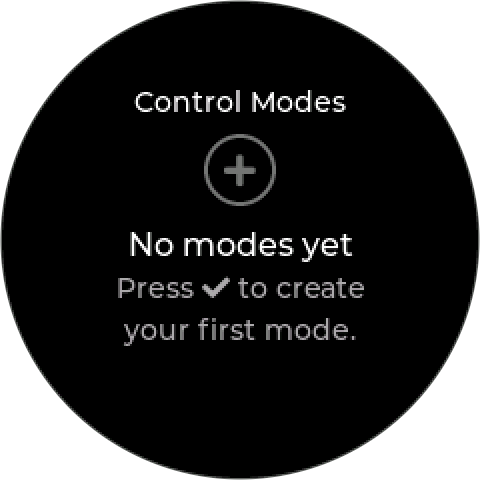
| No modes yet | Shown instead when there are no modes | Starts a new mode | Creating a mode |
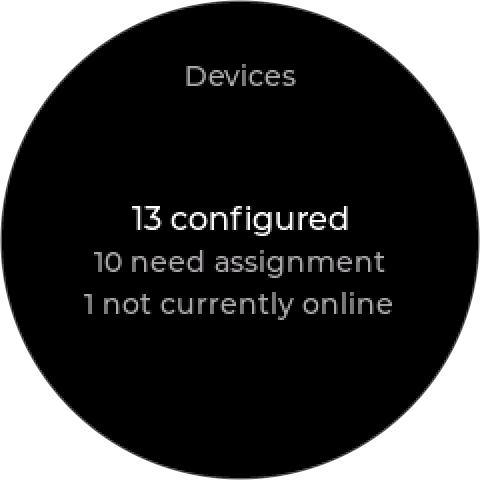
| Devices | How many devices are configured, and how many need attention. N more in device list means some devices have no tile of their own. | Opens the device list, or Add Device if there are none | Devices |
| Device (one per device) | The device’s live readings or outputs | See the next table. Back opens the device menu. | Devices |
| Settings | — | Opens the Settings menu | Settings |
| Device tile | Enter goes to |
|---|---|
| Sensor on the Modbus bus | Its options — Info, Limits, Calibrate, and so on (upcoming firmware; earlier firmware opens Info) |
| Legacy Relay Device 6, Wireless Relay Expander, Wireless Relay Strip | The output list, to run an output by hand |
| IO-Link level sensor | Its tank settings |
| IO-Link contact | Its contact settings |
| NextStep pump | The device menu |
¶ Control Modes
Settings → Control Modes lists every mode with its state — ON, OFF, or SETUP for one that is not complete yet, such as a mode still waiting for a device.
| Item | What it does | Covered in |
|---|---|---|
| Add mode | Creates a mode, starting at Choose type | Creating a mode |
| Set Point | A reading drives an output | Setpoint Control |
| Percent Timer | Output on for a share of each cycle | Percent Timer |
| Volume Dosing | Meter pulses trigger the output | Volume Dosing |
| Calendar | A scheduled program. Field-test firmware only. | Calendar |
| Choose sampling | Set Point only — Continuous, Timed Sample, or Sample & Hold | Sampling |
| Add interlocks | Conditions that hold the mode off | Interlocks |
| (mode) | Opens Review & save. Choose any row to change it. | Control Modes |
| ENABLED | Turns the mode on or off | Control Modes |
| Delete | Removes the mode. Its output goes back to Hand. | Control Modes |
| Save | Saves the mode | — |
¶ Setup Wizard
Settings → Setup Wizard runs setup again on a configured unit, to change which devices fill the profile’s roles. It appears on the Boiler and Closed-loop profiles only, and runs two screens — Bind devices, then Review setup. See Changing setup later.
A new or factory-reset unit opens on Welcome, then Setup Method: WiFi Setup shows a QR code for a phone, Offline Setup carries on with the buttons, and Resume setup replaces Offline Setup when a phone has already done part of the work. On the buttons, the steps are Time zone → Set the clock → Pick profile → Bind devices → the first control mode → Review setup → Setup complete. A unit whose profile was locked at the factory skips Pick profile. See Starting Up.
¶ Devices
Settings → Devices starts with Add Device, then lists every saved device. A device shown in amber is not connected. Choose a device to open its page, then press Enter (Menu) for its device menu. The menu only shows what that device supports.
| Item | What it does | Covered in |
|---|---|---|
| Add Device → Modbus Device | Choose the type under Select Probe — Sensorex Smart Sensor, Pyxis ST-712, ST-710, ST-500, CR-300, LS-200/202, Legacy Relay Device 6, NextStep pump — answer Port powered?, then Set Address. On Found, add it, or press Up/Down to pick a new address and Move it there. | Adding a device |
| Add Device → Wireless Device | Searches for new wireless devices and pairs one | Adding a device |
| Add Device → IO-Link Device | Opens Port A or Port B, showing each pin and the L+ Power switch | Configuring a port |
| Info | Status, type, address or MAC, signal, errors, last seen. A conflicting device shows Accept Replacement or Remove Device here. | Identity checks |
| Control | NextStep pump — run it by hand, switch it off, or hand it back to Auto | Hand, Off, Auto |
| Configure — relay devices | The output list. Choose an output to run it by hand. Wireless devices also have Label Outputs. | Hand, Off, Auto |
| Configure — Wireless Relay Expander | Also Setup, to switch between two relays and one valve (Use as Valve / Switch to relays). In valve mode the list is Open, Stop, Close, Auto, and Label Valve. | Wireless Devices |
| Configure — IO-Link contact | Use, Kind, Type, Thresh, K-factor, Value, On Close | Configuring a contact |
| Configure — IO-Link level sensor, Pyxis LS-200/202 | Tank • Levels — Volume, Height, Offset, Low, Low-low | Tank settings, LS-200/202 |
| Label | Pyxis LS-200/202 — the chemical its tank holds: No label, Inhibitor, Oxidizer, Non-Oxidizer, Oxygen Scavenger, Acid, Caustic | Labeling a level probe |
| Metal | Pyxis CR-300 — Mild Steel, Copper, Admiralty Brass, Aluminum, Stainless 304 | Choosing the metal |
| Limits | Alarm limits on a reading — Channel, Limits on, Low-low, Low, High, High-high, Deadband | Reading Limits |
| Calibrate | Sensorex: Process or Buffer; Buffer then offers One Point, and Air Cal for conductivity. Pyxis: the probe’s own procedure — ST-500 Slope or Zero; ST-710 pH 7, 4, 10; ST-712 pH or ORP; CR-300 check cap. | Calibration |
| Used by | The control modes that use this device. Edit opens the mode. | Control Modes |
| Reset counter | IO-Link contacts — zeroes the contact’s count, such as a water meter’s total | Water meters |
| Address | Modbus probes — the current address on the right; moves the probe to another address | Moving a probe to a new address |
| Remove Device | Removes the device and its saved settings | Removing a device |
¶ Modbus
Settings → Modbus. The serial settings are locked while any device is connected. Back saves and leaves.
| Item | What it does | Covered in |
|---|---|---|
| Bus Power | Switches the bus supply on or off. On by default. Turning it off with devices on it asks first: Turn off or Cancel. (Upcoming firmware; earlier firmware offers Hive Rail or External here.) | Bus Power on and off |
| Cycle Bus Power | Switches the bus supply off and on, after a confirmation that says how many devices restart and how many control modes pause | Automatic recovery |
| Source | Hive Rail or External. Shown only on a unit already set to External, so it can be switched back. | Port powered or externally powered |
| Baud | 1200 to 115200 | Bus settings |
| Parity | None, Even, Odd | Bus settings |
| Stop bits | 1 or 2 | Bus settings |
¶ Networking
Settings → Networking.
| Item | What it does | Covered in |
|---|---|---|
| Network Info | MAC, network, WiFi state, strength, IP, internet, server, and devices on the controller’s own network. Enter switches WiFi off (WiFi off - running offline) or back on. | Checking the connection |
| Known Networks | Saved site networks, marked Connected or Saved. Choose one to join it. Add Network is done from a phone. | Connecting to WiFi |
| AP Clients | Devices joined to the controller’s own network, with signal and address | Checking the connection |
| QR Code | The code a phone scans to join the controller’s network. Troubleshoot shows the network name and password as text. | Connecting to WiFi |
| Inteliverse | Cloud status, name, label, and account. Menu offers Reconnect and Re-provision. | Inteliverse |
¶ Date & Time
Settings → Date & Time.
| Item | What it does | Covered in |
|---|---|---|
| Time Info | Current time, date, and time zone. Enter (Sync) asks for network time. | Settings |
| Set Clock | Set the date and time by hand | Settings |
| Time Zone | Automatic (detected when online), or a time zone from the list | Settings |
| Time Format | AM/PM or 24 Hour | Settings |
¶ Units and system
| Item | What it does | Covered in |
|---|---|---|
| Default Units | Flow Rate (GPM, LPM, m3/h), Total Volume (Gallons, Cubic Feet, m3), Pressure (PSI, Bar, Ft Head), Length (Inches, Millimeters, Centimeters, Feet) | Default Units |
| OTA Updates | Shows the current version, checks for firmware, and installs it | Firmware Updates |
| System Info | System, Version, Build, Main Board, Port Board | Models and Options |
| Factory Reset | Erases all settings, after Confirm and a Final Confirmation | Factory Reset |
| Reboot | Restarts the controller straight away — there is no confirmation | Settings |